

interactive-demo dev serves each demo at /<slug>/ and a visual editor for them at /__demo/editor/. The editor runs on your machine. Everything you change is written straight back into the demo folder in your working tree. There is no draft, no database, and no account. The files are the only copy.
Open it
/ lists every demo with an Edit link. The direct URL for one demo is:
#/ is the demo’s folder name under demos/.
The layout
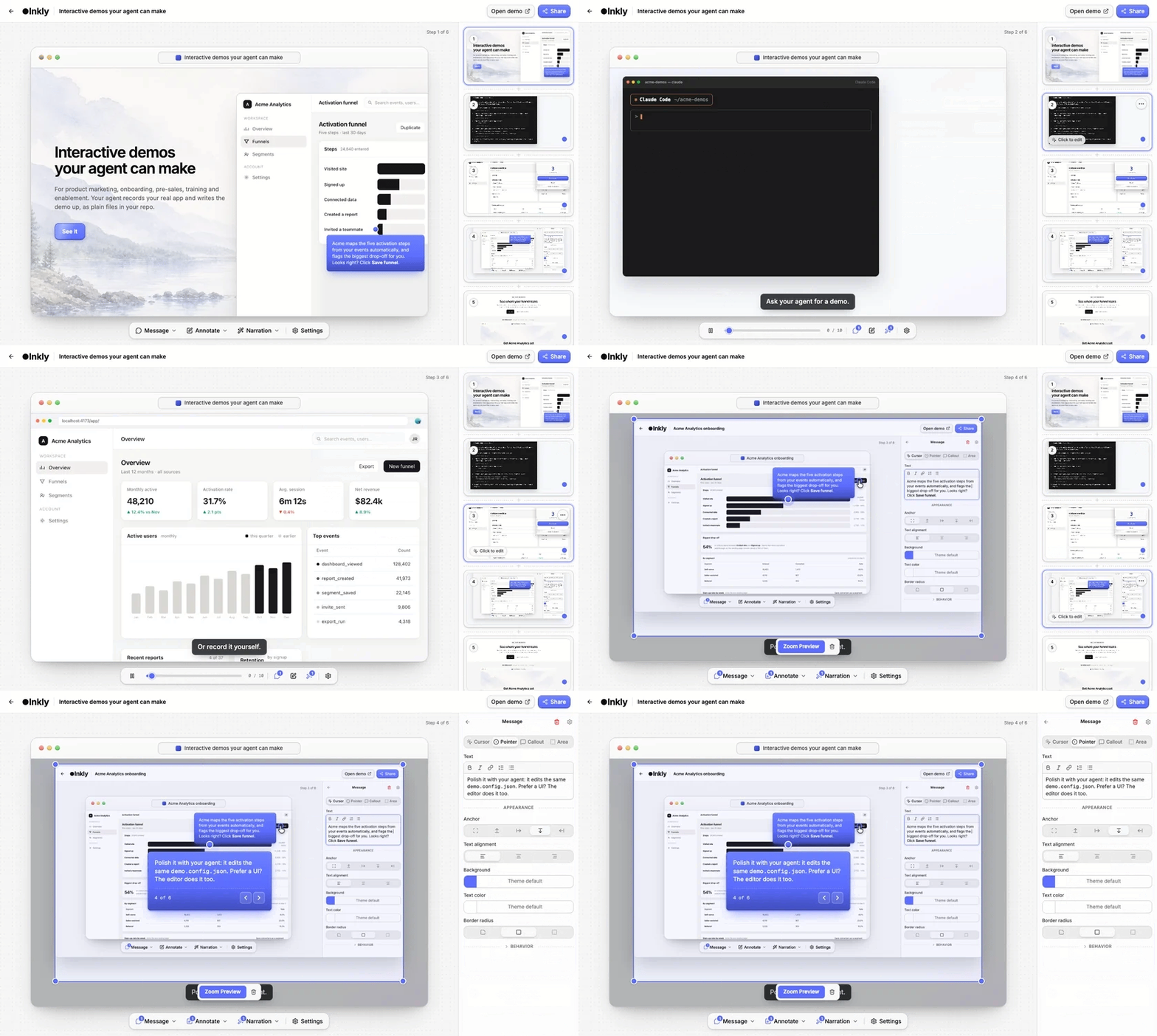
Header. The Back arrow, the Inkly logo, the demo’s title, the save badge, Open demo (the demo’s page, in a new tab), and Share. Back returns to the page you opened the editor from when that page is on the same host. Otherwise it goes to/, the demo index.
Left: the stage. The real player, running the demo you are editing, with drag handles on top. Click an annotation to select it. Drag it to move it. Drag the corner handles of an area or blur box to resize it. The player keeps working, so you can click through the demo as a viewer would, and the strip follows along.
Right: the sidebar. By default it shows the step strip: every step as a numbered thumbnail, with a dot in the corner when it carries messages.
- Drag a thumbnail by its footer handle to reorder.
- The
+between thumbnails inserts a step there. - The
…menu on a thumbnail opens step settings, duplicates the step, or deletes it. A demo has to keep at least one step.
Message and Annotate carry a small count of what the step already has. On a cover step they are disabled, because covers take no annotations. On a video step the toolbar also holds a scrubber for the clip.
What you can change
Steps
Add a content step from an image or video, or a cover step (headline, form, or embed). When the demo does not start or end on a cover, the strip also offers Add intro step (a headline cover) and Add outro step (a closing cover with a Replay button). Reorder, duplicate, delete, and name each step. Step settings also swap the step’s media. A step added in the editor getsadvance.trigger: "auto" for a content step and "click" for a cover.
Video trim
Edit Step Asset on a video step opens a trim dialog. Pick the start and end, and the browser re-records that range into a new video file, with a poster frame, underassets/. The step switches to it. The original file stays where it was.
Messages
Text is written in a small rich-text box and stored as markdown. The inspector holds the variant, the anchor side (orauto), text alignment, corner radius, colours, and whether clicking the message advances the step.
Blur, text, and zoom
Text overlays and blur boxes cover sensitive parts of a screenshot. Position and resize both on the stage. Adding a zoom puts a rectangle on the stage. Move and resize it over the region you want, and the step gets the matchingtransform. The pill beside it previews the zoomed step, or removes the zoom.
Voiceover
One panel lists every step’s narration. Write the script for a step, then either:- record audio from your microphone, which is saved into the demo’s
assets/and attached to the step, or - open the audio picker to choose a file that is already there or upload a new one.
Generating audio from the script is a host feature, offered only when the host lists voices.
dev does not, so locally the panel has Record and Asset only. See Host capabilities.Cover widgets
A cover holds one widget. The inspector switches between headline, form, and embed, and edits their fields: title, description, image, buttons, and where each button goes. A form’s Submissions section sets where its values are sent. Acustom widget is left alone. Edit it in the JSON.
Demo settings
Demo settings cover the title and subtitle, the player header, the “Built with Inkly” badge, the player controls (full, minimal, or hidden), the primary colour, the canvas background behind the player (theme default, a solid colour, a gradient, or an image, with a blur), and the header logo and its link. That logo is the demo’s owntheme.brand, drawn in the player’s header. The project brand, drawn in the page bar around the player, is edited in interactive-demo.json. See Brand and the page header.
Assets
Any media picker in the editor opens the same dialog: the files already under the demo’sassets/, searchable, plus a drop zone to add a new one.
- A file you drop is written into
demos/<slug>/assets/and the step references it by that path. - Uploads are capped at 100 MB.
- If the name is already taken by different bytes, the new file lands as
hero-2.pngand keeps its own path. Steps pointing at the old file are unaffected. - Removing a file is a file-system job. Delete it from
assets/yourself, then runinteractive-demo validateto check that nothing still references it.
What stays in the file
The editor leaves these todemo.config.json:
- chapters
- captions, apart from the ones Generate writes
- a step’s
durationandadvance.trigger chrome.autoplayandaspectRatio- the
secondary,font, andradiustokens customwidgets
theme.preset is kept as written when you save, and validate asks you to delete it.
Deleting a step still keeps chapters honest. The step id is removed from every chapter, a chapter left empty is dropped, and any button that pointed at the deleted step or chapter is retargeted.
Edits go straight to disk
The editor holds your demo’s files in memory and writes the changed ones back intodemos/<slug>/. Nothing else is touched.
- Autosave fires five seconds after your last edit. The badge in the header shows “Unsaved changes”, then “Saving”, then “Saved”.
- ⌘S or Ctrl+S saves immediately.
- Switching away from the tab or closing it flushes whatever is dirty. A hard reload with unflushed edits asks you to confirm first.
- A failed save says so and retries. Saves are serialised, so an older write can never land on top of a newer one.
dev notices the write like any other. The demo page at /<slug>/ reloads with your change. Your text editor, git diff, and the CLI all see exactly what the editor wrote.
Your file keeps its shape
This matters if you or your agent hand-wrotedemo.config.json. The editor writes edits into the shape of the file you wrote:
- Keys keep the order you put them in, and
$schemastays first. - A field you never wrote is not added when it still equals the schema’s default.
- Array elements are matched by their
id, so inserting or reordering a step does not shift later elements onto the wrong counterpart. - A key the schema does not know, such as a note you left next to a step, stays in the file.
- Before writing, the editor parses what it is about to write and compares it against the config it meant to save. Anything that did not survive the round trip is put back explicitly.
git diff shows one changed line.
The Share dialog
Share in the header opens a dialog grouped by how the demo will be used. It shows you commands and snippets. It never uploads or deploys anything.- Send the link. Three steps:
interactive-demo login, theninteractive-demo publish <slug>, then paste the link it printed. A link to adist/you deployed yourself works just as well. - Frame the page. Inline is the iframe snippet, sized to this demo’s own aspect ratio and player header. Pop-up is the loader script plus a trigger for HTML, React, Next.js, Vue, or Svelte, with the button label editable. Both stay locked until you paste a link, because a snippet pointing at a placeholder host is worse than no snippet.
- In your React app. Component is the snippet for rendering the player, or a
DemoModalpop-up, in your own React tree.
When the config does not parse
Ifdemo.config.json is invalid JSON or fails the schema, the editor replaces the stage with “Editor unavailable” and lists the offending paths and messages. Fix the file in your text editor. The editor polls the file while it is broken and comes back on its own as soon as it parses. It will not overwrite a file it cannot read.
A config with a missing or malformed id is not an error. The editor mints one in memory and saves it on the next save.
Host capabilities
This section is for anyone serving the editor from something other thandev.
The editor is a static app. Whatever serves it is its host. On load the editor asks the host what optional features it offers:
dev answers {}, meaning none. The editor treats any answer that is not a JSON object the same way: a 404, a network error, or an older CLI that returns the editor page itself.
Voiceover generation
A host that can synthesize speech advertises it:POST …/assets returns, so asset.path is what the step references.
The editor sets the step’s voiceover to that path with the clip’s duration in milliseconds, and writes one caption per sentence, timed in proportion to its length. An error answer’s { "error" } message is shown under the step. maxChars caps the text sent in one request.
Header links
A host whose pages are not the CLI’s can point the header’s links:{slug} becomes the open demo’s slug.
- Back returns to the page the editor was opened from when that page is on the same host. Otherwise it follows
back, or goes to/when the host names none. - Open demo follows
demo, or the demo’s page underdev.
href must be a path on the host or an http(s) URL. Anything else is ignored.